

OpenTaco State Management helps you create and manage Terraform/OpenTofu state backends centrally, so your team can use consistent backend configuration, shared access controls, and state history across environments. OpenTaco state management implements an interface compatible with HCP Terraform, so this can be used as a drop-in replacement workflow for terraform login / tofu login and cloud block usage.
1

Create first unit

In OpenTaco, a unit is a single managed state backend (workspace) for one root module/environment combination.Create your first unit from the UI, give it a name, and click create.
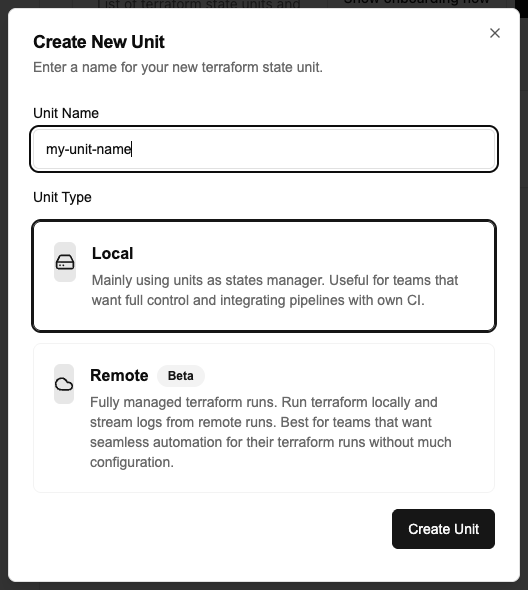
2

Configure cloud block

Start with a minimal root module to verify state management end to end before wiring your full infrastructure code.Create a main.tf:Your cloud block should follow this structure (replace placeholders with your real values from the unit details page https://otaco.app/dashboard/units > View Details):
terraform {
  cloud {
    hostname     = "otaco.app"
    organization = "<your-org-id>"

    workspaces {
      name = "<your-unit-id>"
    }
  }
}

resource "null_resource" "smoke_test" {}
3

Authenticate with Terraform / Opentofu

Using the cli you can run the following command to authenticate:
terraform login otaco.app
You will have to confirm and will then be redirected to a token generation page. This page will allow you to generate a token and you can copy paste it back into the cli.After pasting the token into the cli ou should see a message saying
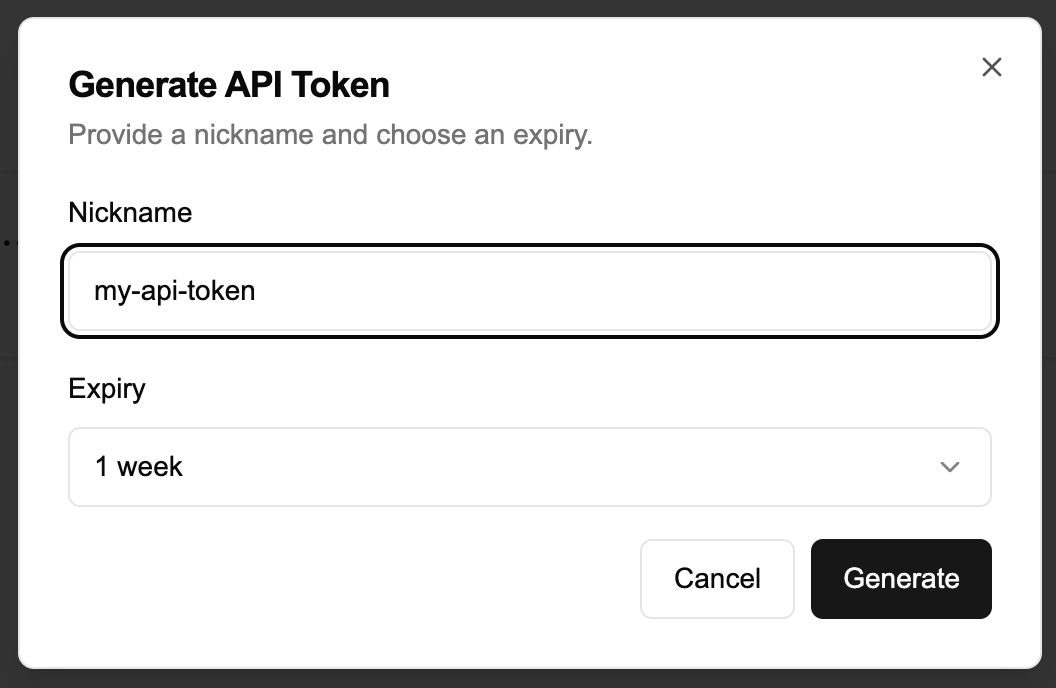
Success! Logged in to Terraform Enterprise (otaco.app)
4

Run init

Using Terraform or OpenTofu, run init. It should succeed.
➜  ~ terraform init

Initializing Terraform Cloud...

Initializing provider plugins...

Terraform Cloud has been successfully initialized!

You may now begin working with Terraform Cloud. Try running "terraform plan" to
see any changes that are required for your infrastructure.

If you ever set or change modules or Terraform Settings, run "terraform init"
again to reinitialize your working directory.
If this is the case then well done! You have successfully created your first unit!

Next steps

  1. If you want to use remote execution, continue with Remote Runs (Beta).
  2. Otherwise, continue with PR Automation onboarding.